Running a simulation
Once you have a simualtion set up, run it by clicking the Run button in the Action pane:
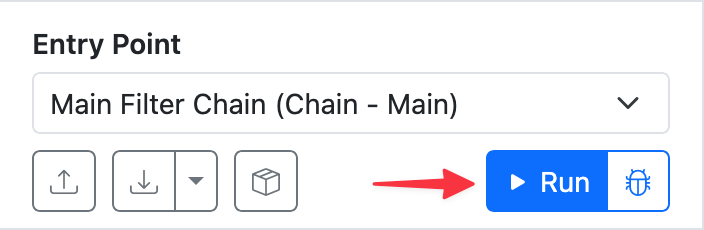
Execute a simulation by clicking the Run button.
Simulation result
After running a simulation, an Execution Flow pane will appear below the Canvas, with the results of the simulation. The Canvas will show datum input/output counts above each filter.
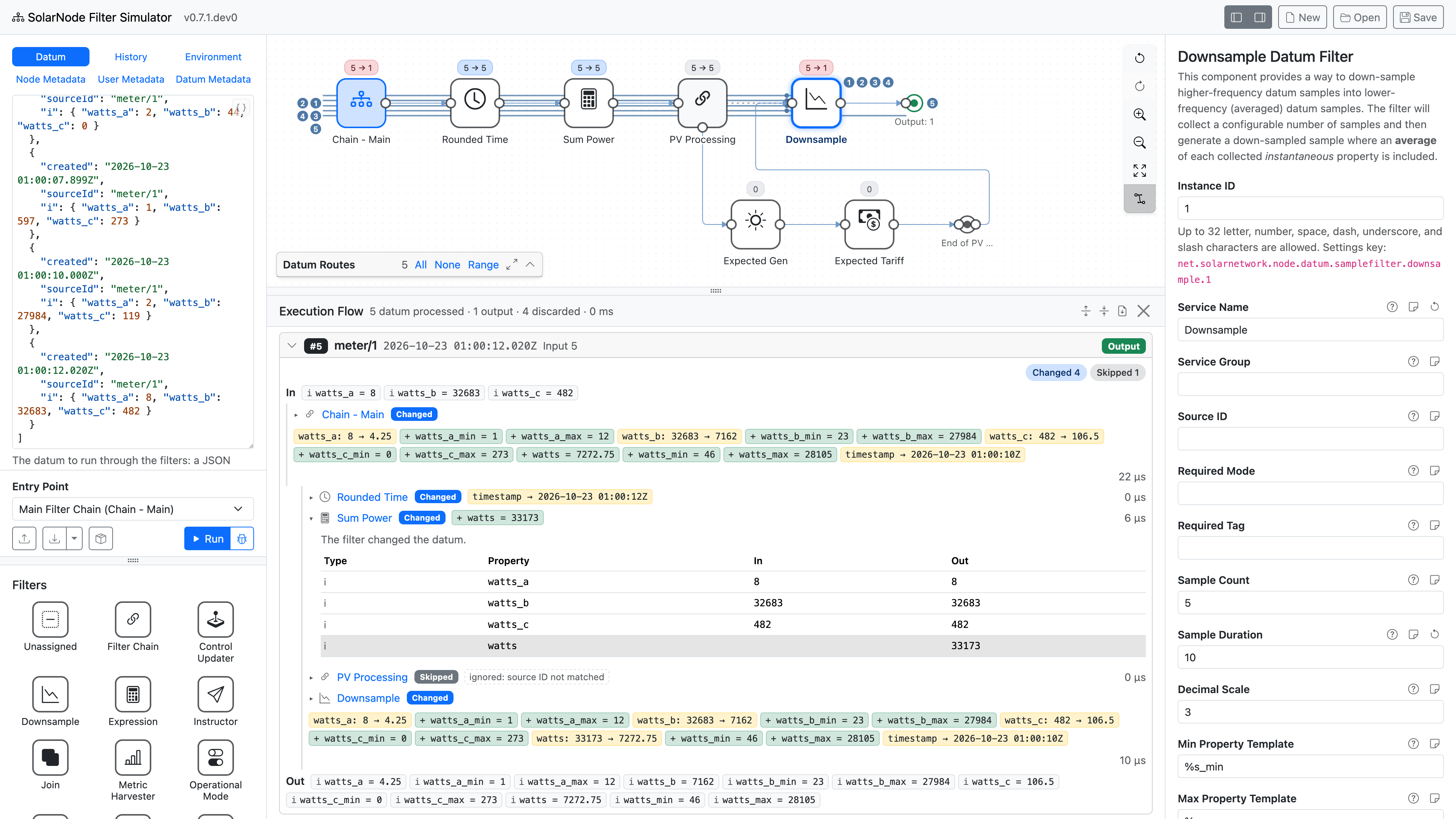
An example simulation. In this run 5 datum were passed through the filters, and a Downsample filter discarded the first 4, emitting a modified "downsampled" 5th datum.
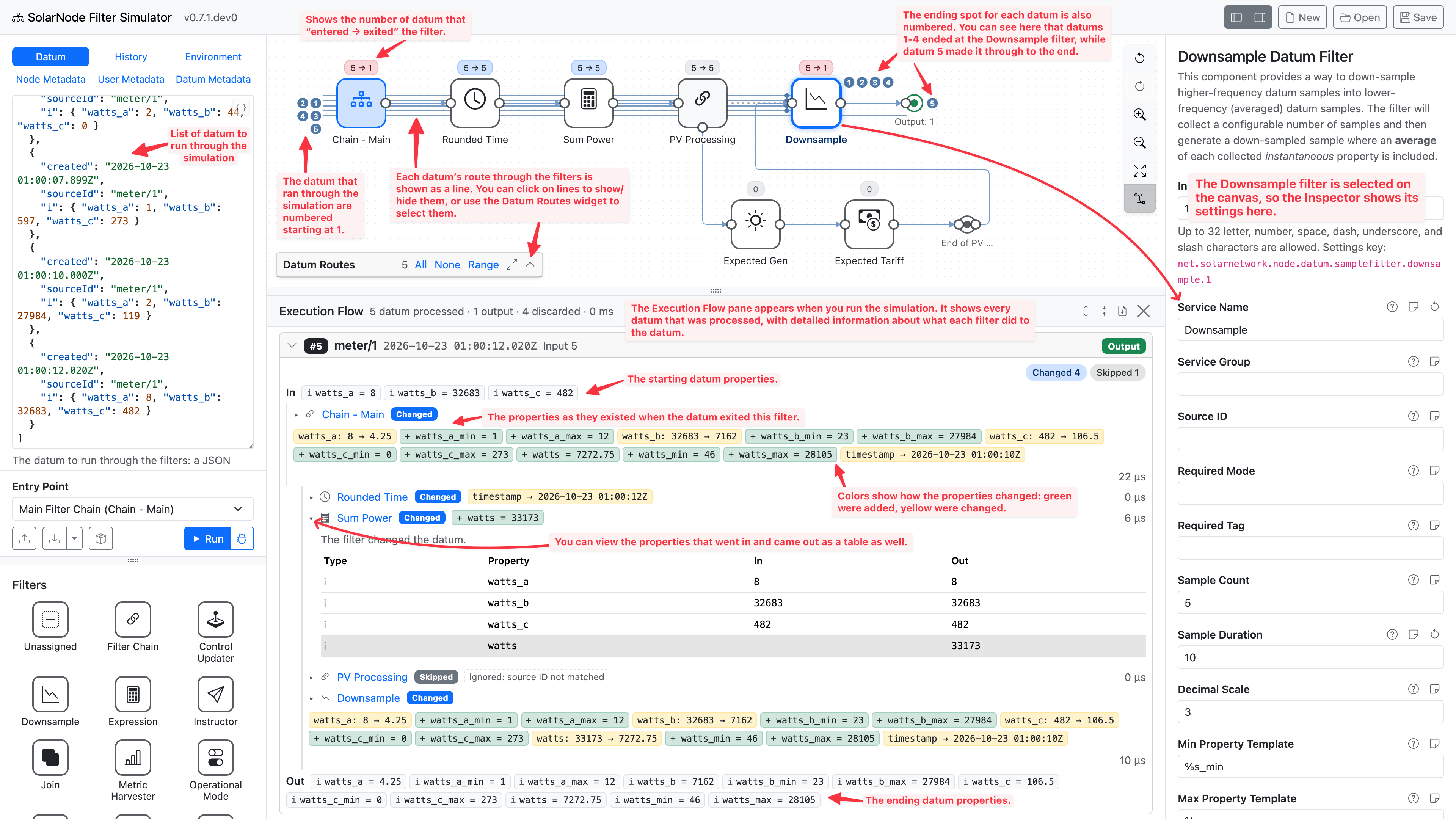
Here is an annotated version of that screen shot that showcases some high-level aspects of what you are seeing:
Generated datum
Some filters like Split generate new datum. These datum are added to SolarNode's Datum Queue and then processed like any other datum, running through the configured filters themselves.
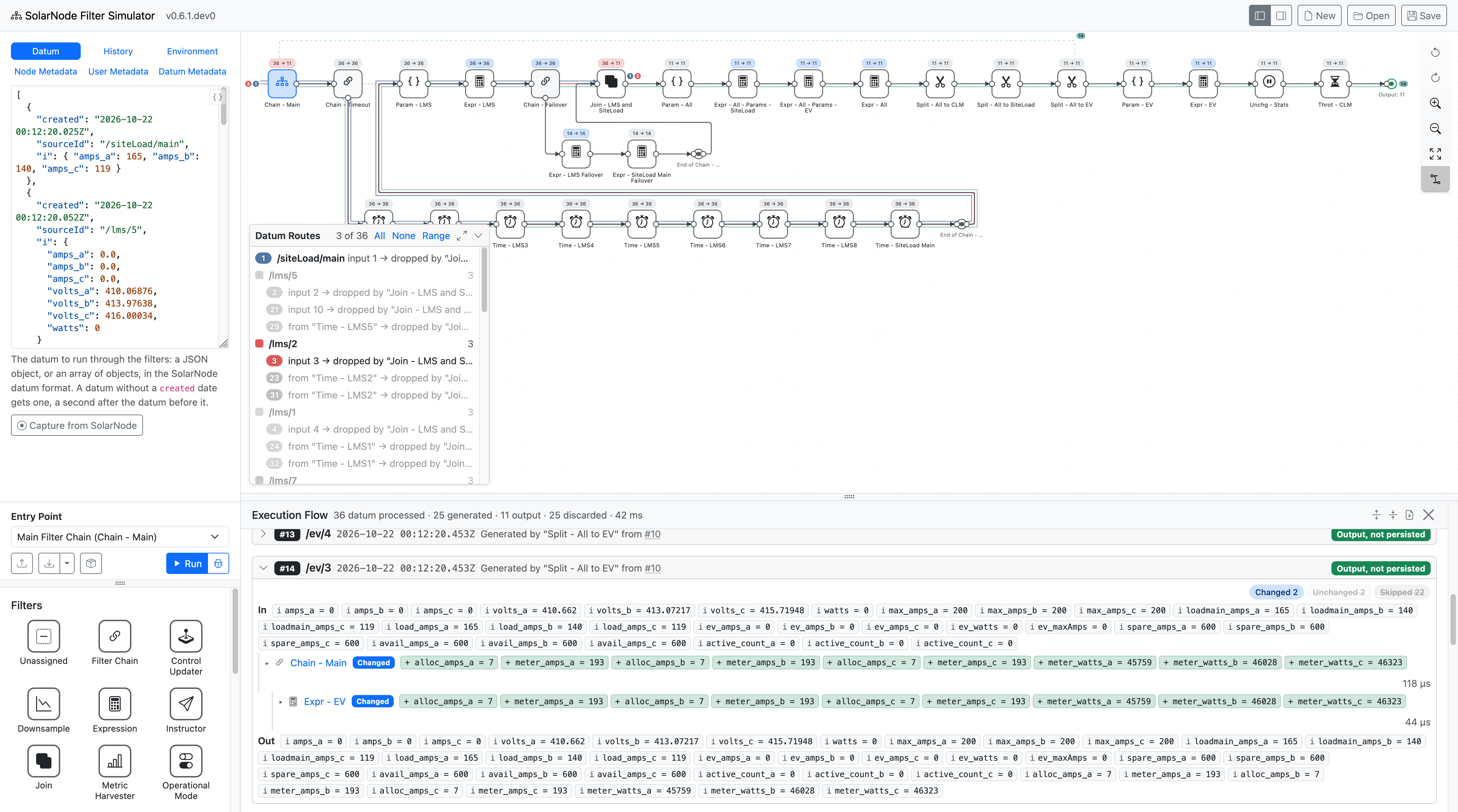
An example simulation with generated datum.
In this example the Split - All to EV Split filter generated a new /ev/3 datum (#14 in the
simulation). The Canvas shows a dotted line that goes from that filter back to the starting point.
You can then see datum #14's route through the entire flow, ending at the Output at the far
right.
Instruction runs
A Control Conductor task, or an Instructor instruction with a future
executionDate, waits for SolarNode's Instruction Execution Job. When the job runs one on the
simulated clock, the Execution Flow shows it as a dashed card between the datum, before the datum
processed after it. The card shows when it ran, the conductor and task (like Control Conductor
"HVAC DR" task 1), its status, the control it set, links to the datum the control published, and
the filter step that issued it. Click the card to see its instructions. The Instruction runs
pill above the datum shows or hides the cards.
A filter step's instruction chip shows each instruction it issued, and its details list the instructions with their status messages (such as a Predicate Expression that declined), with the tasks a conductor scheduled, and when they are due, indented below. A datum a task's control published reads like "Published by control /hvac/1/mode, set by Control Conductor "HVAC DR" task 1 at 2025-10-01 00:09:00Z", and its route on the Canvas starts at the filter that issued the instruction. Instructions still waiting when the simulation ends are listed in the final state. In debug mode, the Instructions tab shows the instructions waiting as of each filter step.