Getting your bearings
When you first visit the application, you are presented with four main panes:
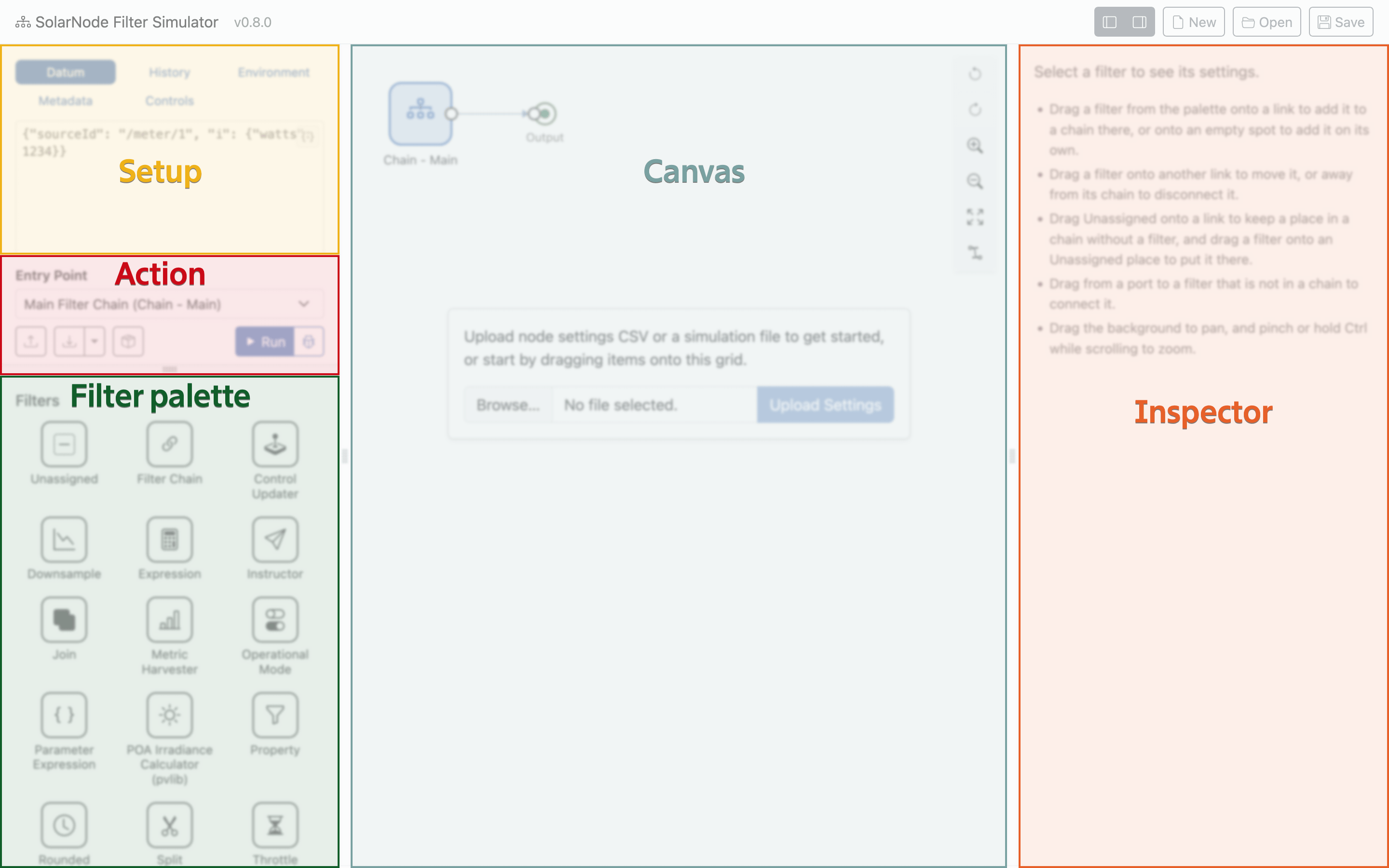
- Toolbar (top bar) - the application version and some action buttons.
- Setup (top left) - where you configure the overall parameters of the simulation, such as the datum to run through the filters, node metadata, and placeholders.
- Action (middle left) - where you can start the simulation as well as import or export the filter settings as CSV files.
- Filter Palette (bottom left) - a list of the available filters that you can drag onto the canvas.
- Canvas (middle) - a flow chart style visualization of the simulation.
- Inspector - shows the editable properties of a filter after you click on one in the canvas.
Toolbar

The top of the window contains the application name and version, along with some action buttons on the right side.
Pane toggle buttons

The first two buttons in the toolbar allow you to toggle the left and right applicaiton pane visibility, to give the Canvas more room.
Simulation buttons
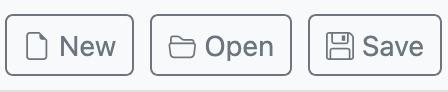
Buttons to reset, open, or export the simulation.
The New, Open, and Save buttons on the right side of the toolbar are for managing the entire simulation:
| Button | Description |
|---|---|
| New | Reset the simulation back to an empty state. |
| Open | Upload a saved simulation file, replacing the current simulation. |
| Save | Download the simulation as a file. |
Tip
A saved simulation file contains everything you configure in the simulation, including the inputs in the Setup. You can share this file with others so they can run your simulation exactly as you have.
Setup pane
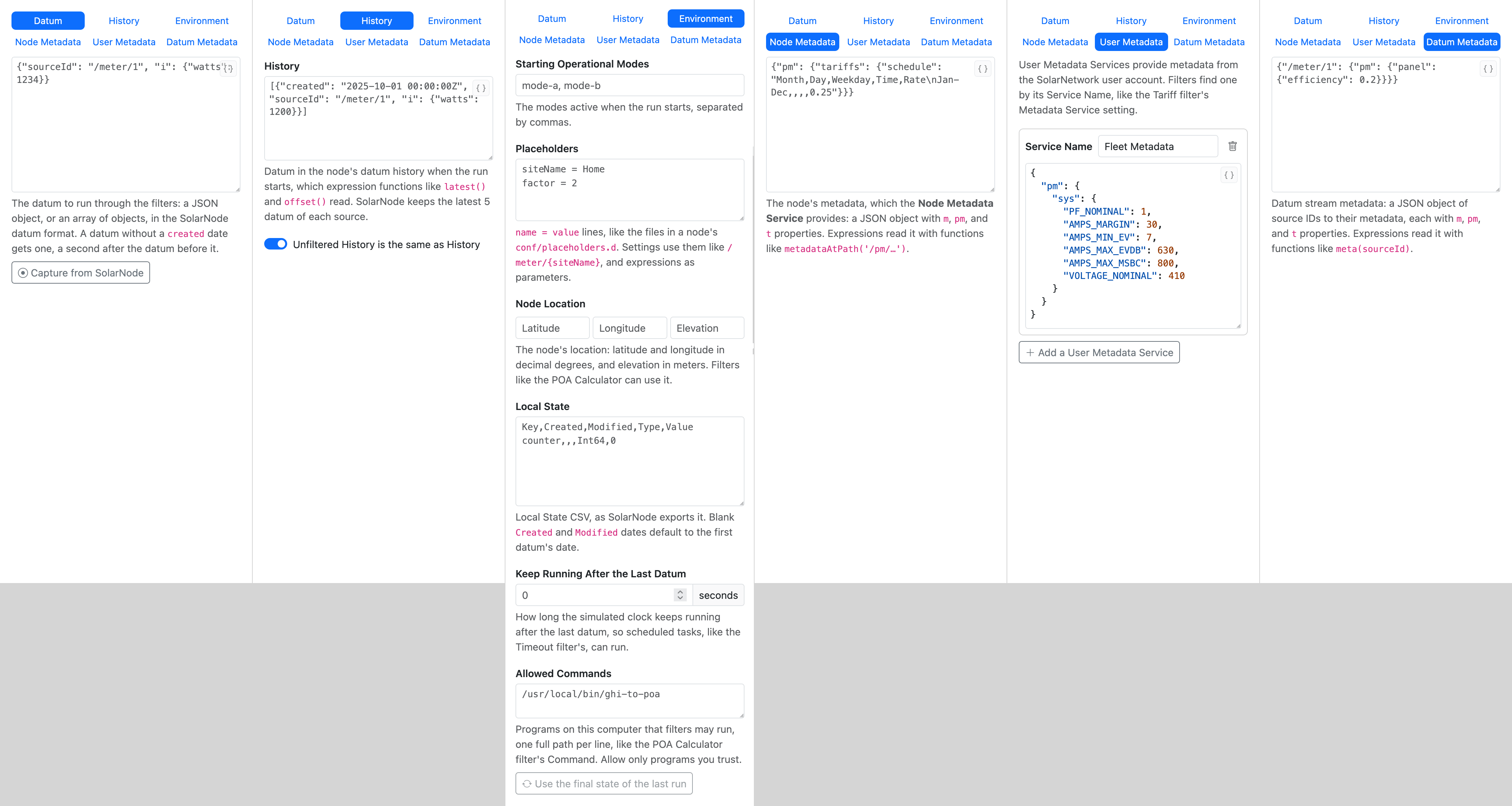
The various tab views within the Setup pane.
The Setup pane is where you configure the overall SolarNode simulation universe. At a minimum you must provide the initial datum to send into the filter execution flow. These initial datum represent data captured from SolarNode Datum Sources that read from devices like meters and power inverters.
The History, Environment, Metadata, and Controls tabs in this pane allow you to configure other simulated SolarNode services like Metadata, Placeholders, Operational Modes, Local State, and more. Generally you need to configure everything your filters expect to be available when they run in SolarNode.
The Metadata tab holds the node's metadata, the metadata of each datum stream (one per source ID), and any User Metadata Services.
The Controls tab holds the node's simulated controls, which filters like the Control Updater set. See Controls and Instructions for more details.
Action pane
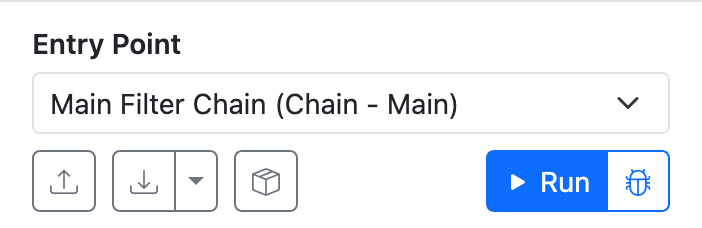
The Control pane is where you can:
- import filter settings from a SolarNode
- export the simulation's filter settings, so you can apply them to a SolarNode
- add external filter settings, like those contributed by
solarnode-config-*packages in SolarNodeOS; these are not exported with your simulation settings - run (or debug) the simulation
The Entry Point is the name of the filter to pass the input datum to when you run the simulation. Typically this is the Main Filter Chain, but you can actually specify any filter in the simulation.
Filter palette
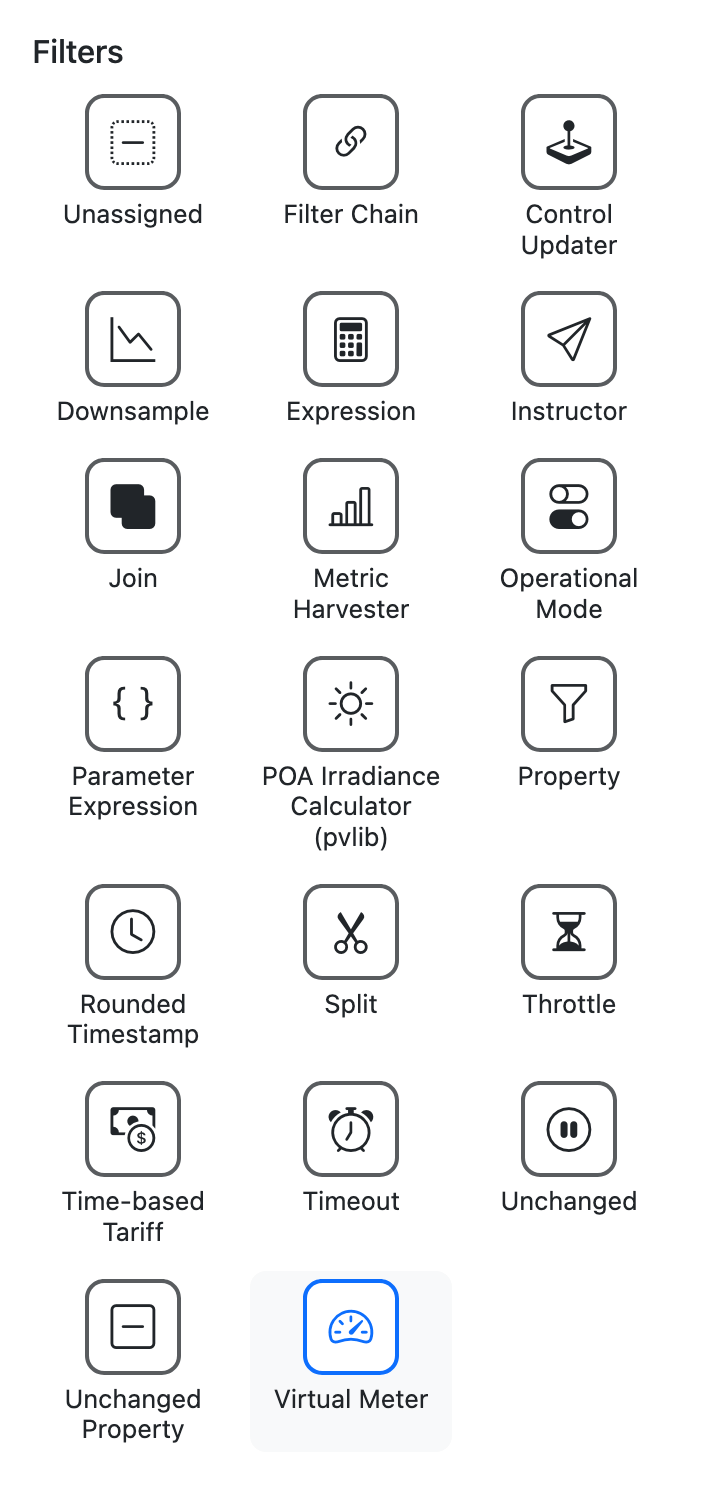
The Filter palette shows you all the available filters you can use in the simulator. Simply drag a filter from the palette over to the canvas to add it to the simulation. Drop the filter on any connector line between filters to insert that filter into the execution flow at that point.
Canvas
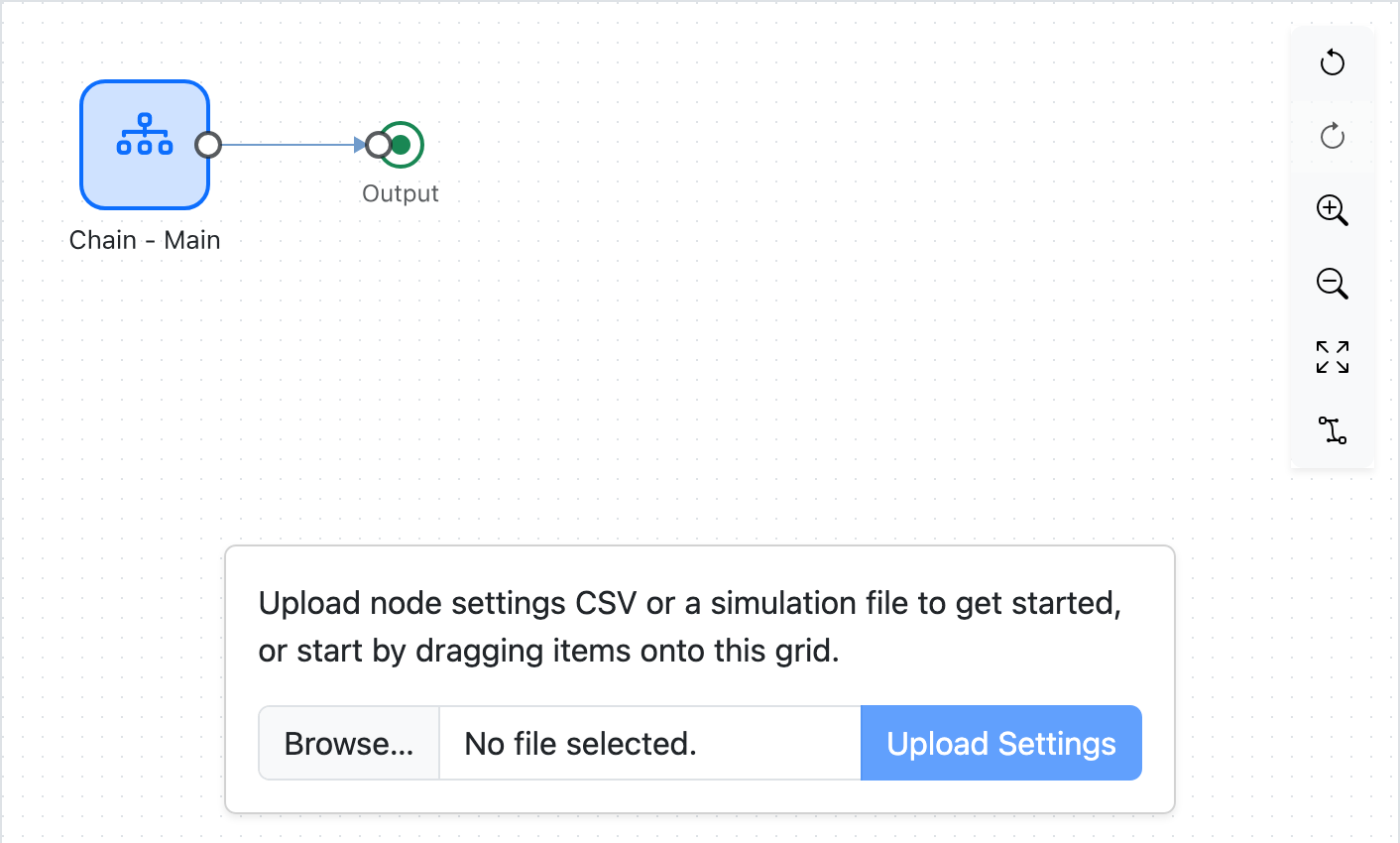
The Canvas is where the filter flow diagram is drawn. You can drag filters from the Filter palette and drop them onto the Canvas to add them to your simulation. The Canvas has a toolbar in the upper-right of the pane:
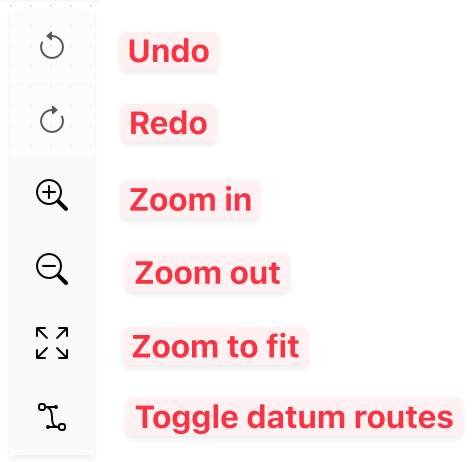
The Toggle datum routes button is used to show or hide lines representing "routes" each datum takes as it flows through the filters during a simulation run.
Inspector
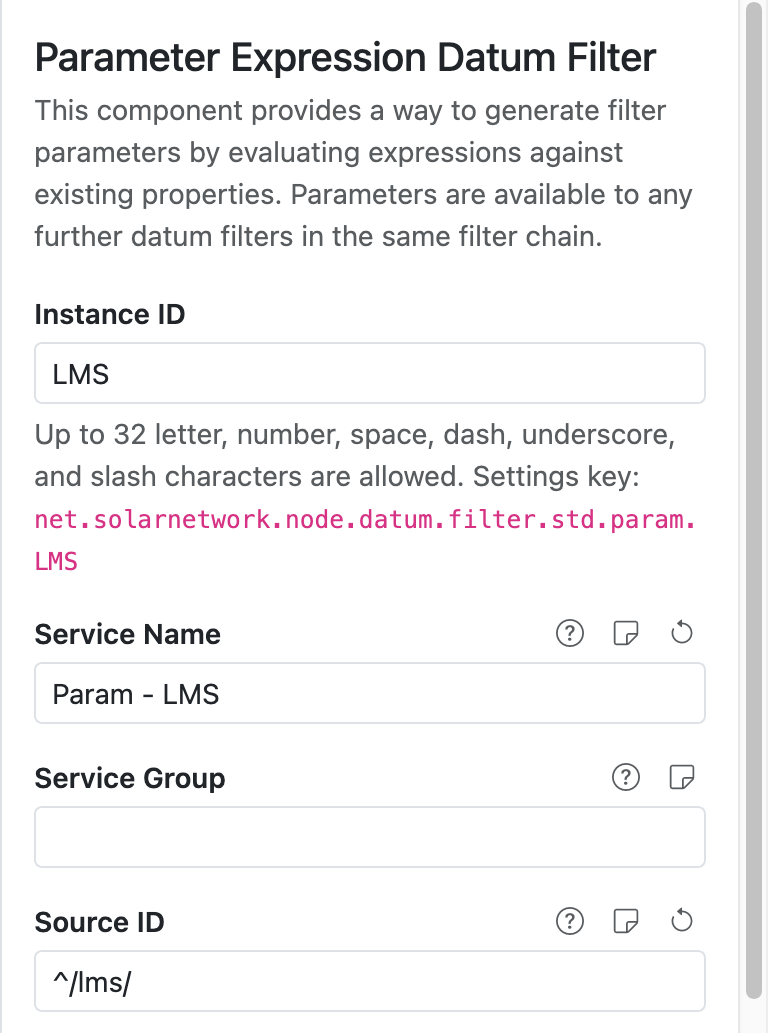
If you click on a filter in the Canvas, the Inspector will show you an editable form for that filter's settings. The form looks and works much the same way as it does in SolarNode, except that changes are saved automatically.