Creating a simulation
To create a simulation you can create one from scratch just using the Simulator, and you can also import settings from a SolarNode to start with its filter settings.
Create from scratch
To create a simulation from scratch, drag your desired filters from the Filter palette onto the Canvas.
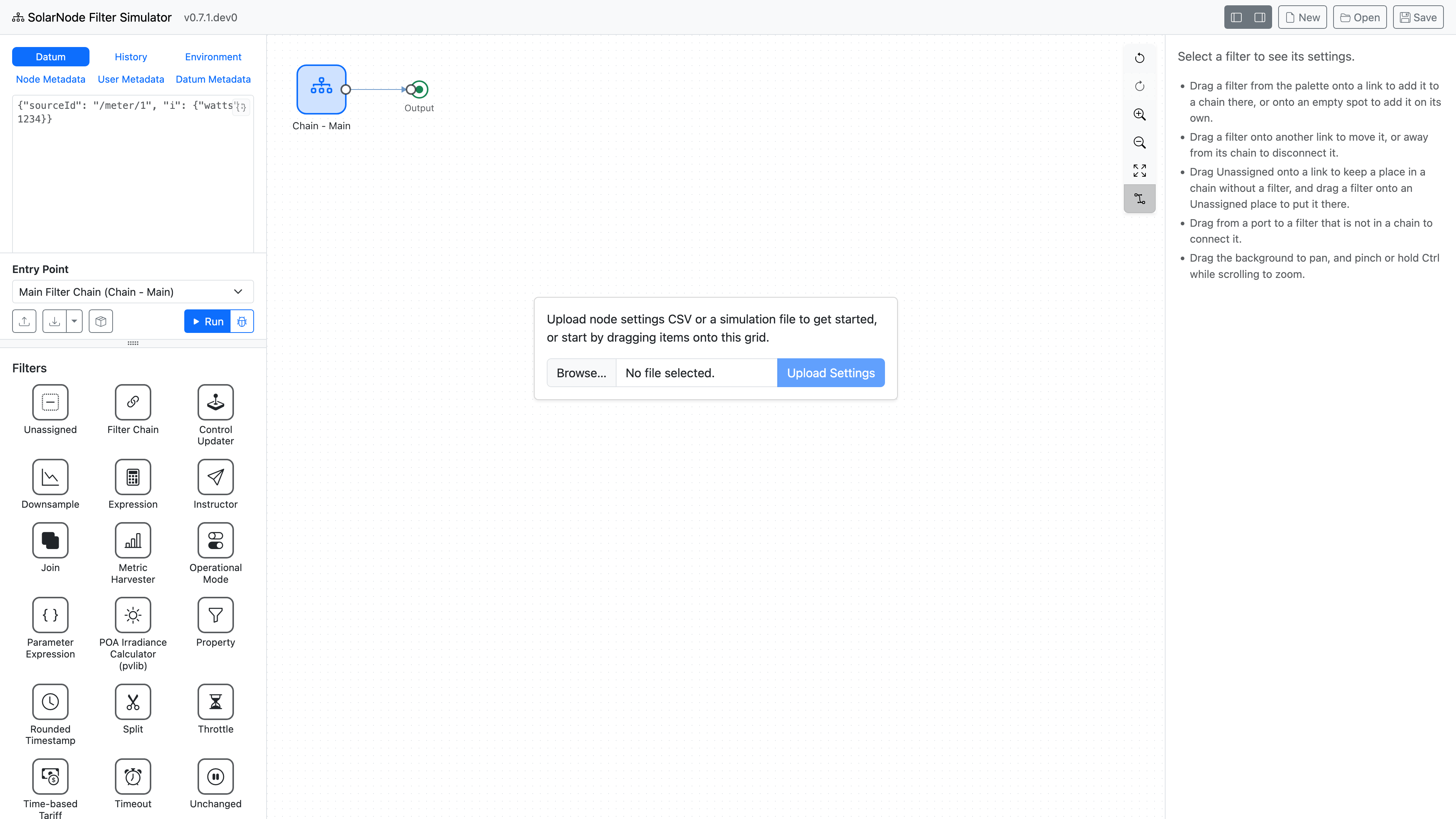
A new, empty simulation.
Drop filters onto a connection line to insert the filter into that position within the overall flow. Drop filters anywhere else on the canvas if you would like to configure its settings without it participating in the main flow.
Import filter settings from SolarNode
You can import the settings from a SolarNode that already has filters configured, so you can then simulate that exact setup. From SolarNode, go to Settings > Backups > Settings Backup & Restore and click the Export to file button to download the node's settings as a CSV file.
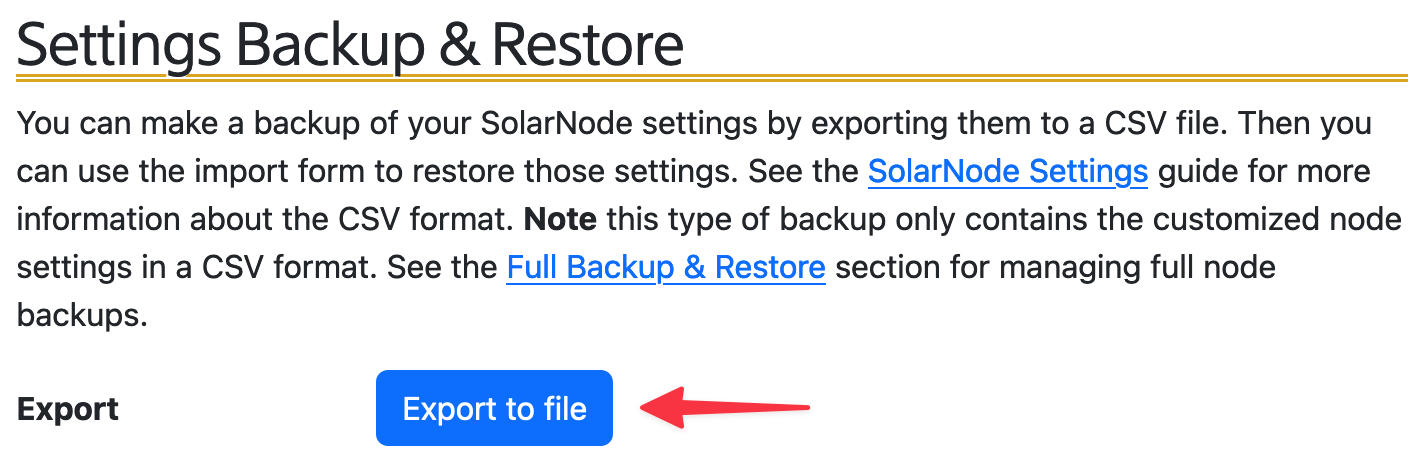
The exported file will include all of SolarNode's settings. The SolarNode Filter Simulator will ignore non-filter settings so you do not have to worry about any other settings are included in the export, except for some controls and Control Conductors, which the Simulator adds to the Controls tab:
- Each Modbus or BACnet Control becomes a control of its type, without a starting value, which publishes a datum every time it is set. A Modbus control keeps its datum property name.
- Each Output control of a GPIO Control becomes a Boolean control starting at
false, which publishes a datum every time it is set, with its datum property name and type. Input controls are not supported. - Each Mock Control becomes a control with its type and initial value, which publishes a datum when its value changes.
- Any Control Datum Sources are used to decide whether each control publishes at all, and whether its datum are persisted. A file without Control Datum Sources publishes every control's datum, without persisting them, like a Control Datum Source with its default settings.
- Each Control Conductor keeps its settings.
When you add a file to a simulation, its controls replace those with the same control ID, and its conductors those with the same Service Name. When you replace the simulation with a file that has controls or conductors, they replace all of them. Ctrl+Z does not undo changes to the Controls tab. Exports include only the filter settings.
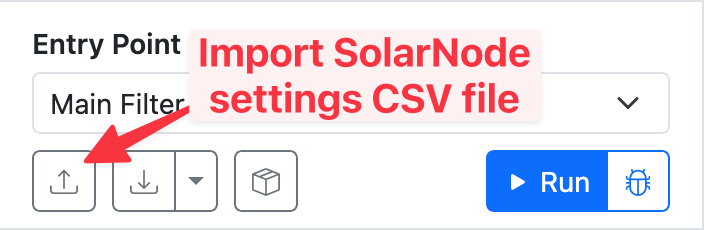
Now in the Simulator, click on the Import settings button in the Action pane and select the file you exported from SolarNode.
Making changes
Click on individual filters on the canvas to inspect its settings in the Inspector. You can modify the filter's settings there.
You can remove a filter from the canvas by selecting it, then typing the Backspace or Del key.
You can use Ctrl+Z or Cmd+Z to undo your changes as you go.